Screens, devices & groups
DisplayHive separates the physical device running a browser from the logical screen it displays, and content is targeted at groups of screens rather than individual screens or devices.
| Concept | Page | What it is |
|---|---|---|
| Device | /devices |
A physical/browser player that connects over Socket.IO |
| Screen | /screens |
A logical, named display slot with its own resolution |
| Screen group | /screengroups |
A set of screens that content is assigned to |
| Matrix | /matrix |
A grid for bulk-managing which screens belong to which groups |
Registering a device
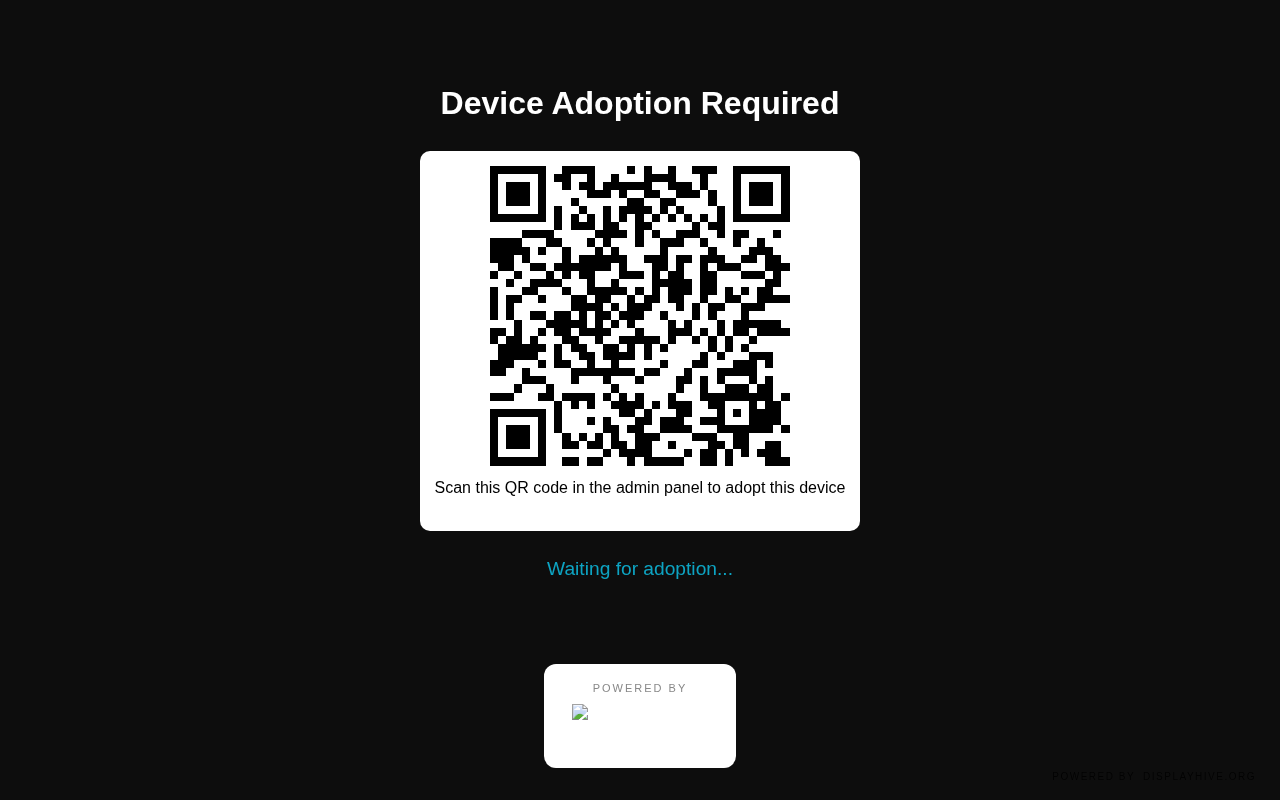
Step 1 — open the display. Load the display's URL in a browser (or kiosk app). Until it's adopted, it shows a QR code and waits:
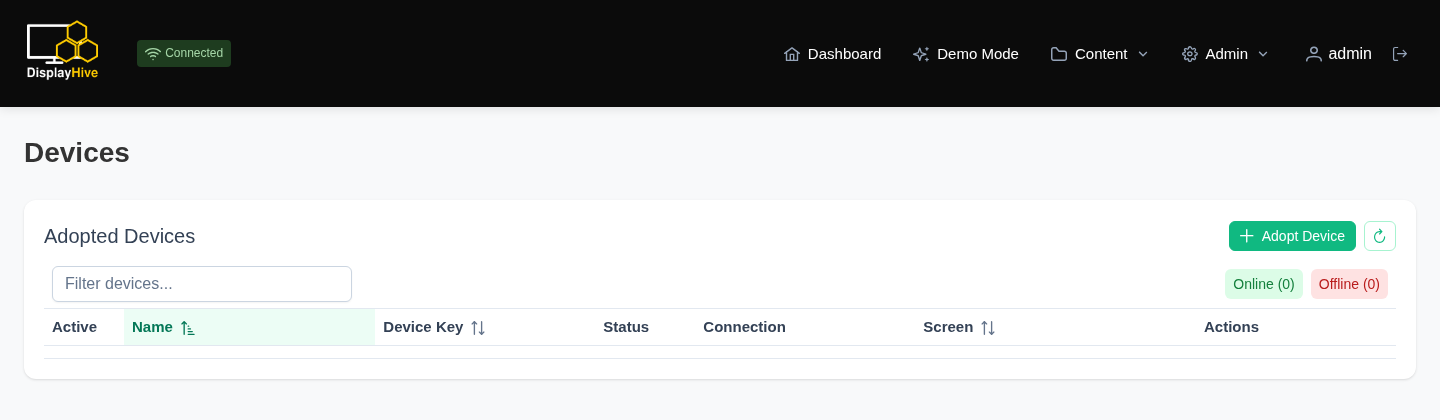
Step 2 — start adoption. On the Devices page (empty here, before any device is adopted), click Adopt Device:
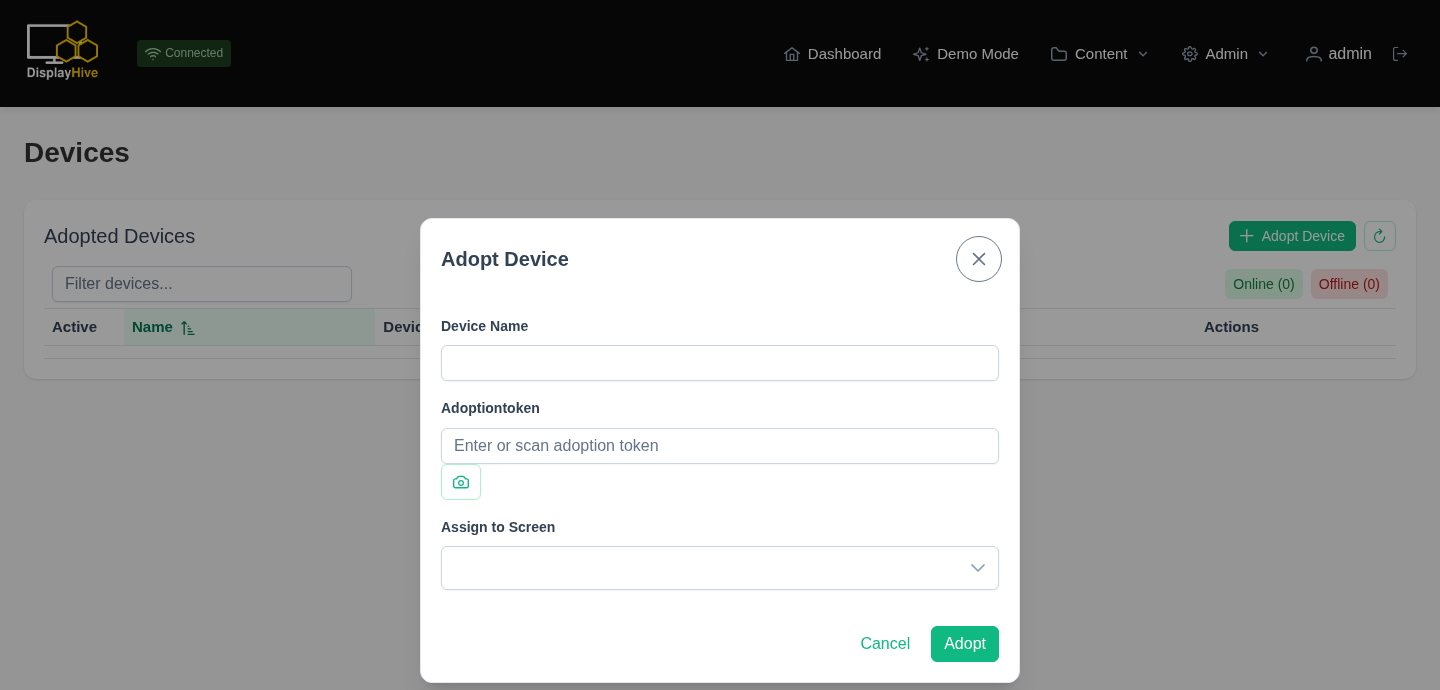
Step 3 — scan or paste the token. In the dialog, scan the QR code with the camera button, or paste the token manually, then give the device a name:
Step 4 — confirm. With the token and name filled in — and, optionally, a Screen picked from the dropdown for it to attach to right away — click Adopt:
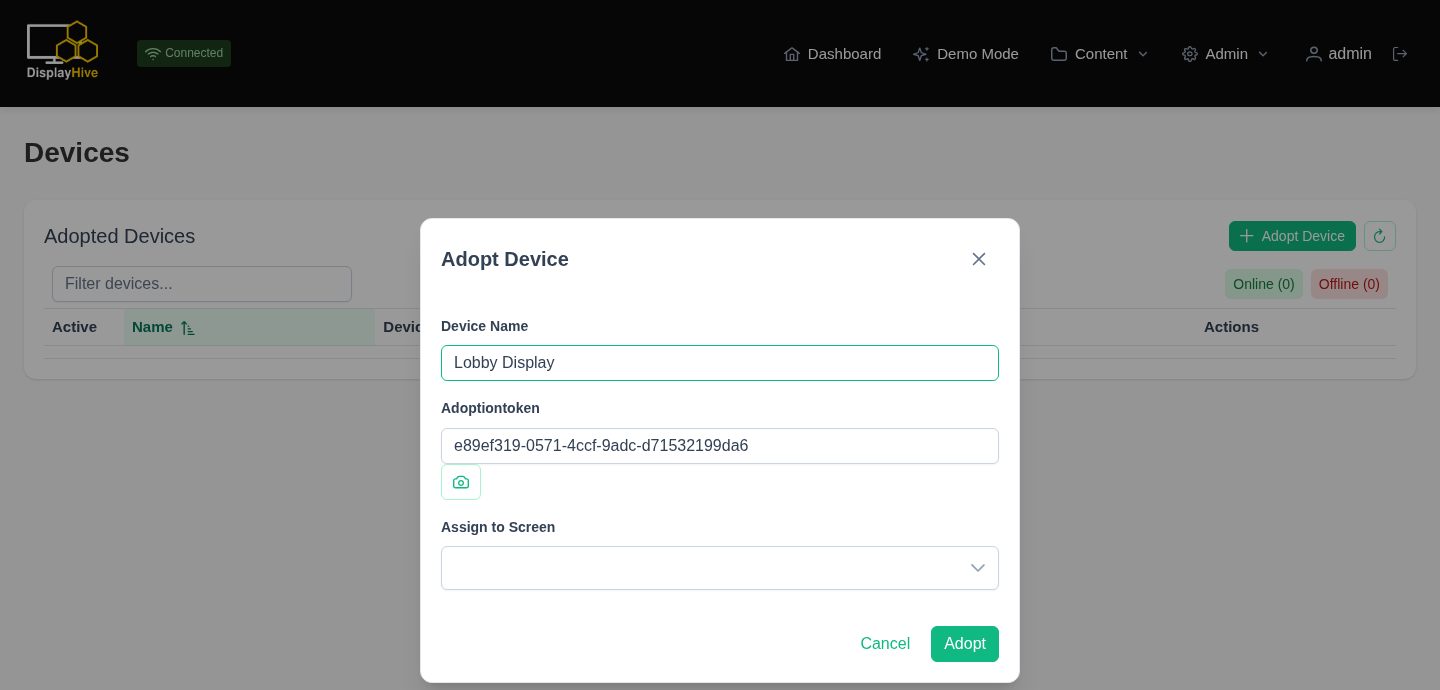
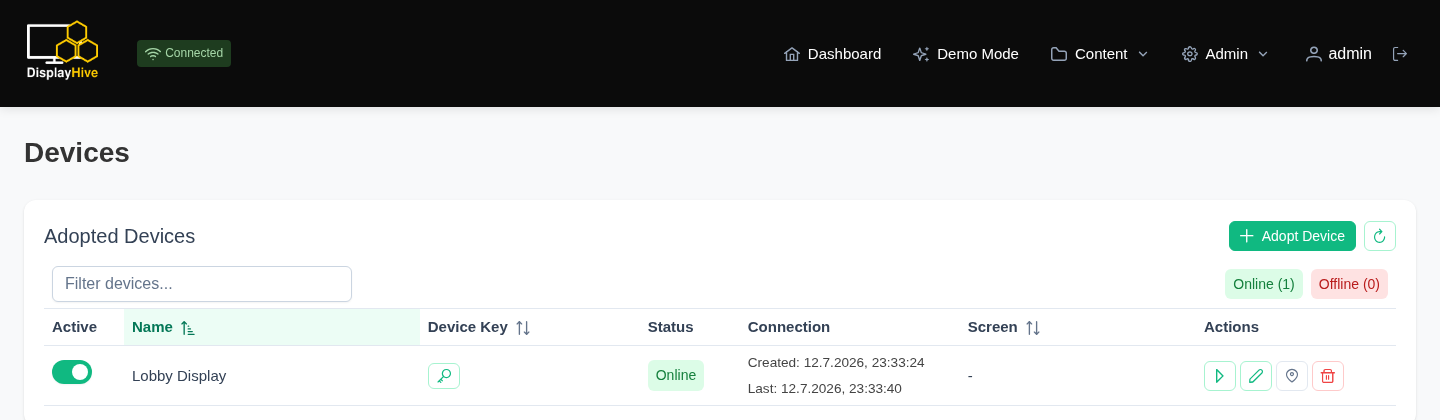
The device now shows up Online in the list:
This creates a Device record and links it to the chosen screen. You can
re-assign a device to a different screen later from its edit dialog on the
Devices page.
Screens
A Screen (/screens) is the logical slot content actually targets: it
has a resolution, a monitoring toggle, and a debug flag. Every screen renders
the same instance-wide design and shares the same layouts — there's no
per-screen override. Multiple devices could point at the same screen, but
typically it's one device per screen.
Screen groups
Content is never assigned directly to a screen or device — it's assigned to
a Screen Group (/screengroups), and every screen in that group shows
it. This lets you broadcast the same content to many screens at once by
adding them all to one group.
Matrix view
The Matrix page (/matrix) is the fast way to manage group membership
in bulk: rows are your active/online screens, columns are your screen
groups, and each cell is a checkbox — check it to add that screen to that
group, uncheck to remove it. This avoids opening each group individually
when you're managing many screens at once.