Import & export
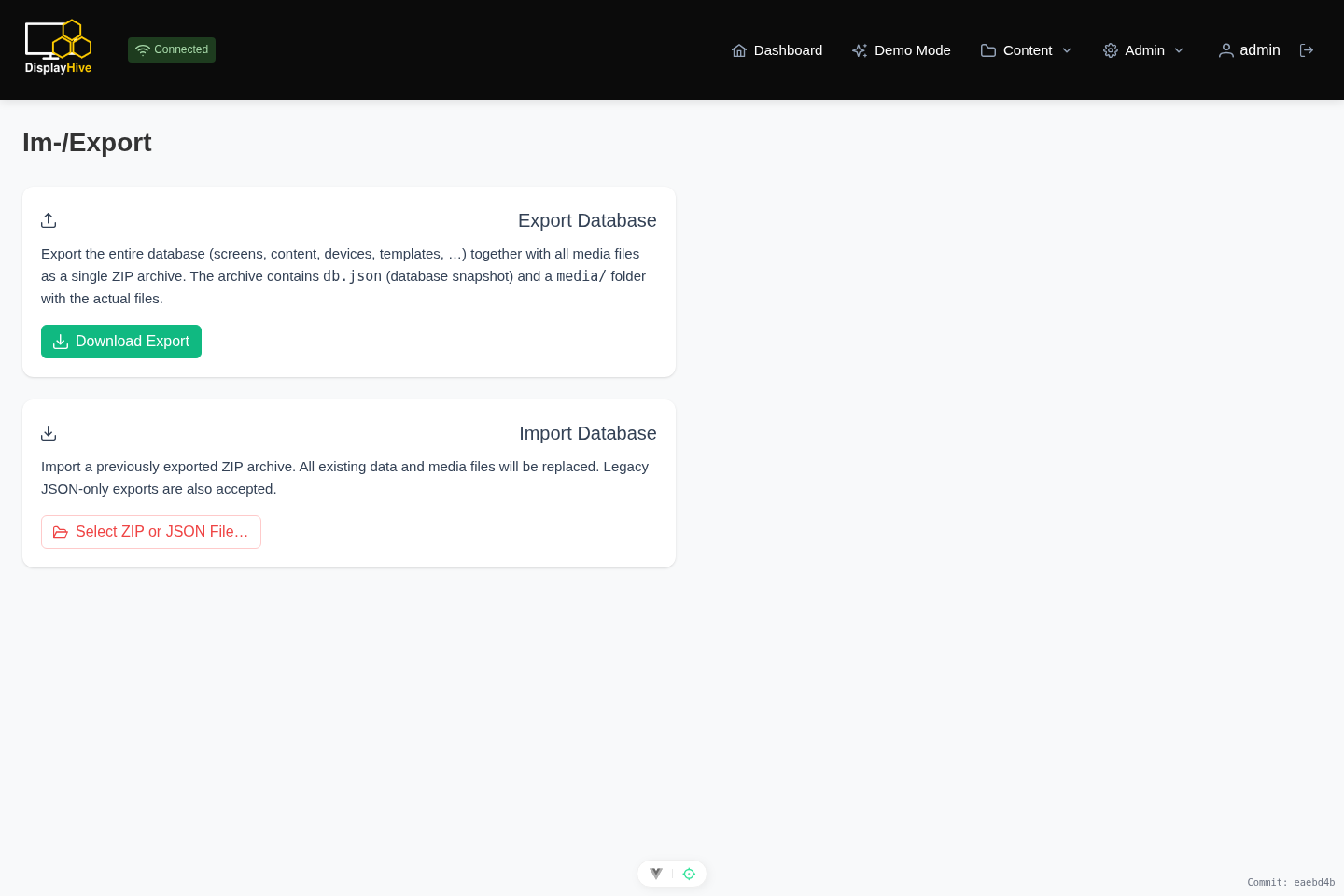
The Import/Export page (/importexport) backs up or migrates content
between DisplayHive instances. You pick exactly what to export or import —
by entity type, or individual items within a type — rather than being
limited to an all-or-nothing dump.
Export
The Export panel shows a tree of everything currently in the instance, grouped by type (Screens, Screen Groups, Designs, Gradients, Layouts, Content Containers, Content Types, Content Elements, Media, Devices, Magic Tags, Magic Tag Value Lists). Check the types or individual items you want, then click Download Export.
- If something you selected depends on something else (a Content Type's Layout, a container's styling Design, an image a Content Element displays, and so on), that dependency is pulled in automatically — the export is always self-consistent, so you never end up with dangling references after importing it elsewhere.
- The download is a
.zipcontainingdb.json(the selected data) and amedia/folder with the matching media files. - Leaving everything checked (the default) produces the same full-instance export as before.
Import
Selecting a .zip (or a bare .json for data only) doesn't import it
immediately — it's parsed and previewed first:
- Preview. The file's contents are shown in the same type/item tree as Export, pre-checked to everything the file contains. Items that already exist locally (matched by a stable internal ID, not by name) are flagged with an exists badge.
- Choose what to import. Narrow the selection if you only want part of the file.
- Choose a mode:
- Reset whole database — wipes the entire local database and media folder first, then imports the selection. This is the old all-or-nothing behavior: destructive, and not limited to the types you're importing.
- Merge into existing data — adds the selection into the current database without touching anything else. Items that already exist locally (the "exists" badge) are left untouched by default; you can switch the default to overwrite them, or override individual items either way.
- Click Import.
Reset wipes everything, not just what you're importing
Choosing Reset whole database deletes the entire local database and media folder before importing — including data of types you didn't select. Admin user accounts and the rights/groups system are the exception — they're always preserved. If you only want to bring in part of a file without touching the rest of the instance, use Merge instead.
Merge is the safe way to move a subset of content between two live instances, or to re-import an updated export without losing local changes to everything else. Reset remains the way to fully restore an instance to a known state, or move it to a new server.
Exports from older DisplayHive versions (which predate per-item selection) are still accepted — they're imported as a whole, with no selection tree.
Not a complete backup
The export archive does not include admin user accounts, rights/ groups, Telegram alerting configuration (bot token, subscribed users), Pretalx API URLs/settings, or other instance-wide system settings. Only content data (screens, layouts, designs, content, media, etc.) is covered.
For a regular, complete backup, back up the database (SQL dump) and the media folder directly at the infrastructure level, in addition to — or instead of — using this export.